
Getting Started on Android
We now have an official SPINSIGHT App for Android in the Google Play store - you can use it to view data and manage player profiles but it cannot measure. You can use an iPhone with the official SPINSIGHT App for iOS in the Apple App Store to measure.
Measurement on Android
The "SPINSIGHT beta" App on android is a development prototype. We cannot provide user support for Android, either it works on your phone or it doesn't work and you should get an iPhone for measurement.
Feedback by other users
On this page we list the feedback of other users for their smartphone model. Check if your model is already listed there.
Installation
You need to join a Google Group with your Google Account to get access to the App. Usually the Chrome Browser on your smartphone is signed-in with your Google Account. If you changed accounts, please check.
- In Germany and EU countries join "SPINSIGHT beta Android".
- In other countries join "SPINSIGHT beta Android extended".
- Then open this link to the SPINSIGHT beta App to install it via the Play Store on your smartphone.
- If you do not see the App in the Play Store please check that the E-Mail-Address used in the Play Store matches the E-Mail-Address used to join the Group.
- We do not support all countries yet.
First App start
- The App will ask you to read and accept our privacy agreement and for permissions to use the camera.
- Sign in with your SPINSIGHT account.
- You can create a free account on https://app.spinsight.com.
- On some smartphones you need to "Run Tests".
- This tests if the camera on your smartphone can be configured and delivers any images.
- To test if the image quality is sufficient you need to really measure spin with a SPINSIGHT ball for a few minutes.
First measurements
If the tests were successful we can continue to test with real measurements. A SPINSIGHT ball is necessary for spin measurement. With a normal ball you can only test the speed measurement.
- The app needs good light for high speed video measurement.
- >300 Lux for low speed
- >600 Lux for high speed
- Check the light level at your table with "Measure Light Level"
- Place the phone in a phone stand next to the table.
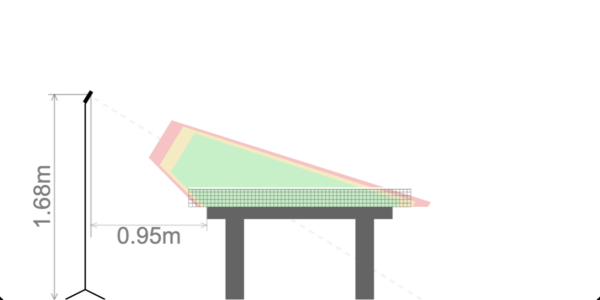
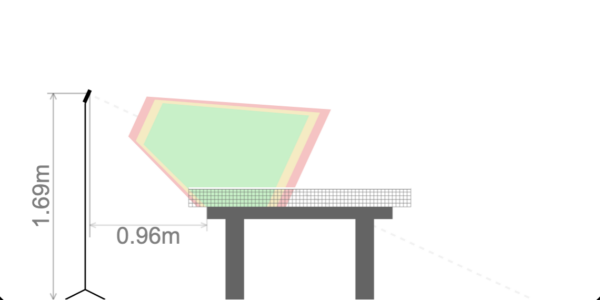
- Recommended is about 130-170 cm height above the floor and 20-100 cm distance from the table.
- Place a ball on the centerline of the table about 10cm right side of the net.
- Start the measurement in the App using the "START" button.
- Click on the button "Adjust Focus" and then on "Auto" for automatic Focus adjustment.
- For better results check and adjust the ISO value and focus manually.
- Play some long serves over the center of the table through the measurement area.
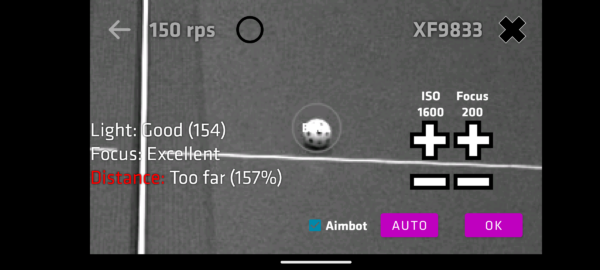
- The measurement area where the app can successfuly measure the ball has a minimum and maximum distance from the camera, usually around 50-100 cm.
- The phone screen will show the live results.
- You can connect a display device via the QR code in the measurement settings.
- The Help page has more details.
Give feedback to other users
You can help other users by rating the measurement quality inside the App below the START button with 1-5 stars. (1 star if it's not working, 3 stars if it is working good-enough to use, 5 stars if it works perfectly for you.)
Your rating will be shown in the statistics here. Thank you for testing it.
Explanations
Google Account Problems
Check which account you use inside Google Play App and which you use in Google Chrome to join the Google Group. Sometimes users use multiple accounts and the Chrome account is different from the Play account. Try joining the Google Group with the same account.
Sometimes joining the Google Group is not enough or it takes a day until the App becomes available in Google Play.
Sometimes it just doesn't work on some phones. Unfortunately we cannot provide an APK for sideloading as we update the app via Google Play.
Camera Test Result
- FullHD (1920x1080) resolution - Same resolution as iPhone.
- HD (1280x720) resolution - Smaller measurement window area.
- 240 FPS - 150 rps and 200 rps spin measurement.
- 120 FPS - only 100 rps spin measurement.
Almost all Android phones that pass FullHD resolution for a few seconds cannot sustain that load long enough. Therefore we use the smaller HD resolution by default. This means that you might have to adjust the smartphone placement and angle for best table coverage and it may not cover the full table width.
Testing with normal balls
You can partially test the functionality using normal balls. It will measure the speed. But it will not give a conclusive result if it can also measure the spin. On some smartphones the image quality is not good enough for spin measurement.
Illustrated Examples
Typical good setup
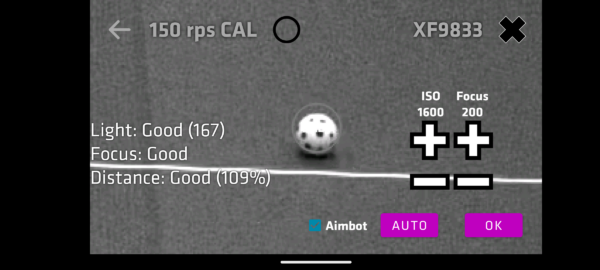
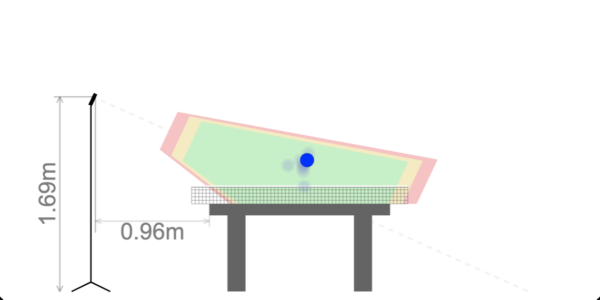
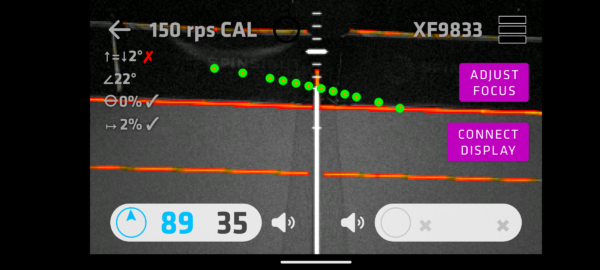
Typical Problem: Camera aimed at Table center
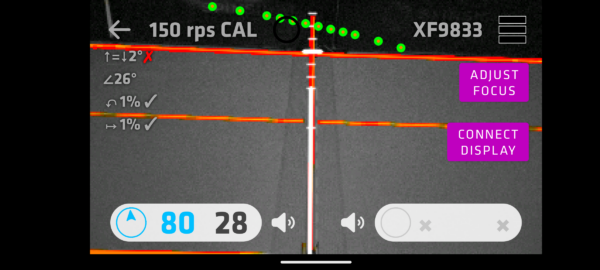
Typical Problem: Android Camera Zoom not working
Typical Problem: Distance too far
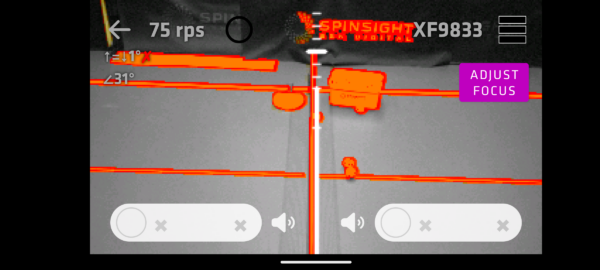
Typical Problem: Background not dark and clean
so